To install Debian 13, follow the step-by-step installation process below.
Step 1 : Insert the Debian 13 DVD or bootable USB, then start or restart the system and boot from the installation media.
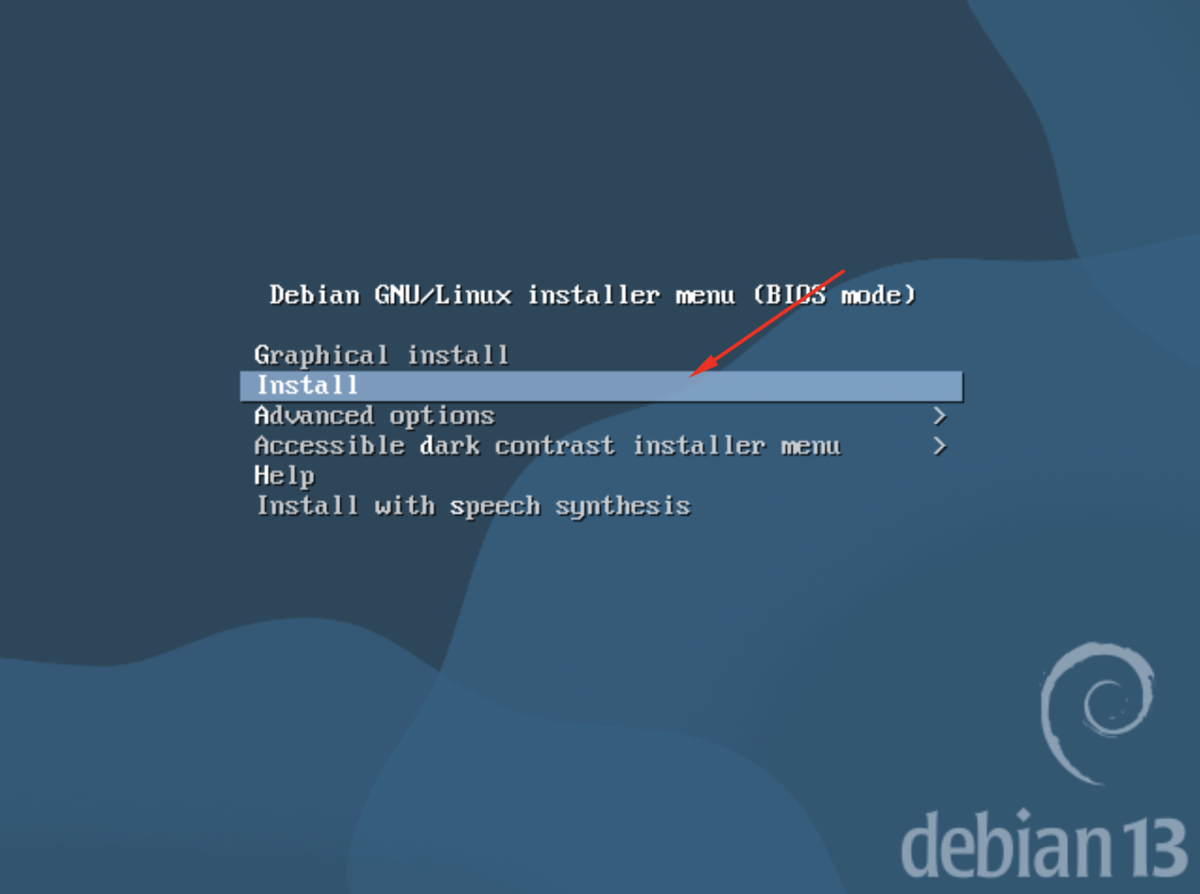
Step 2 : At the boot menu, select Install and press Enter.
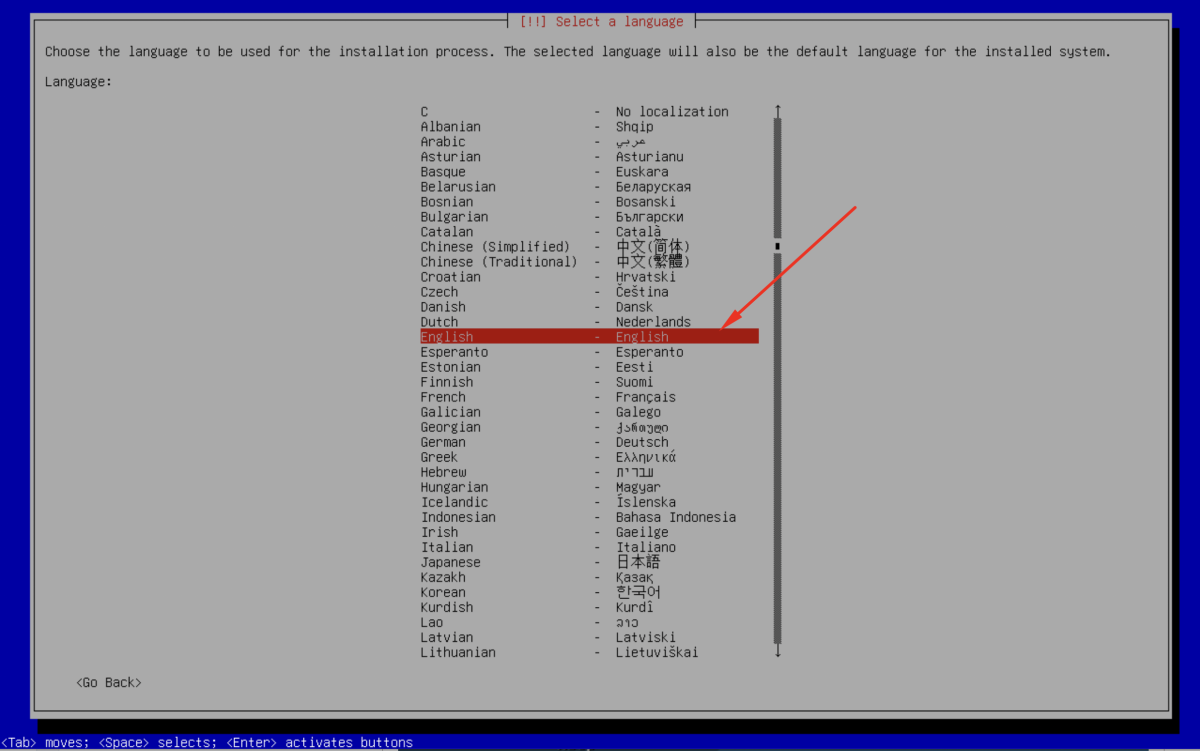
Step 3 :Choose your preferred installation language and continue.
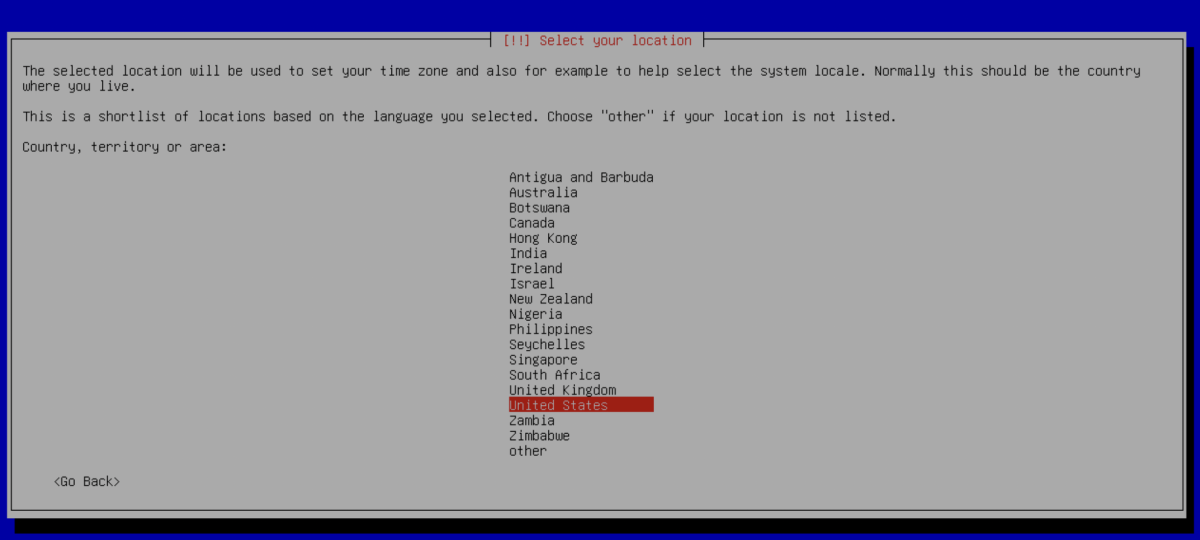
Step 4 : Choose your location.
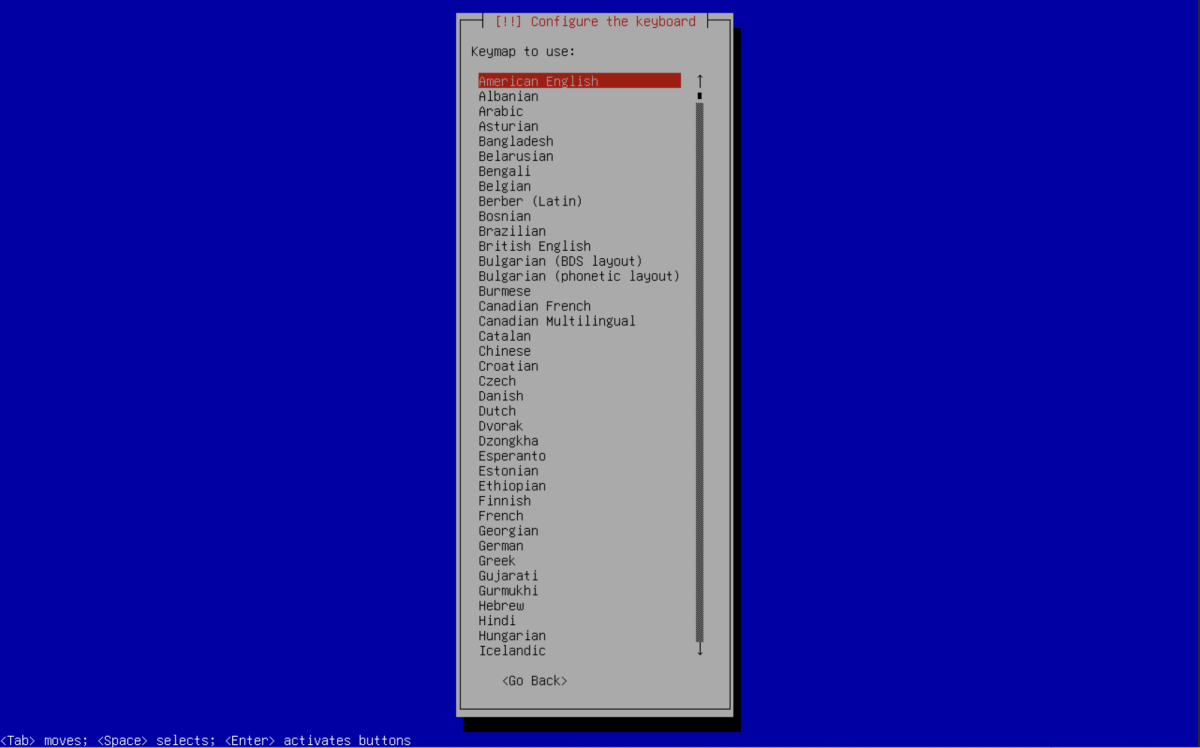
Step 5 : Select the appropriate keyboard layout for your system.
Step 6 : Enter a hostname for the system and continue.
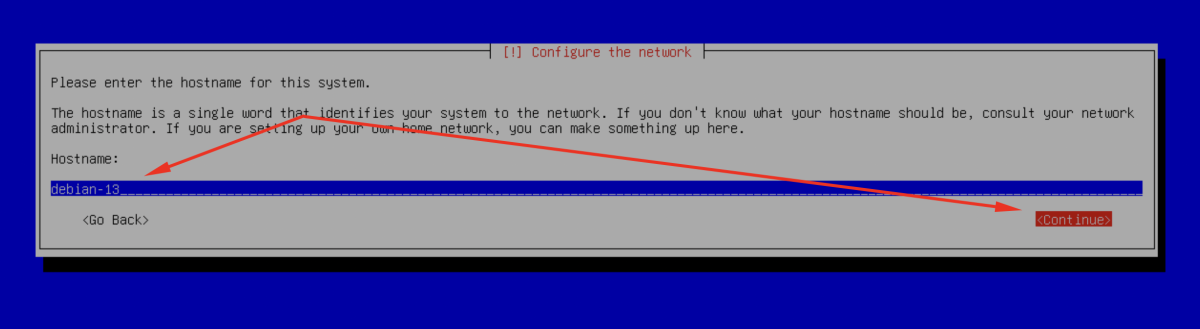
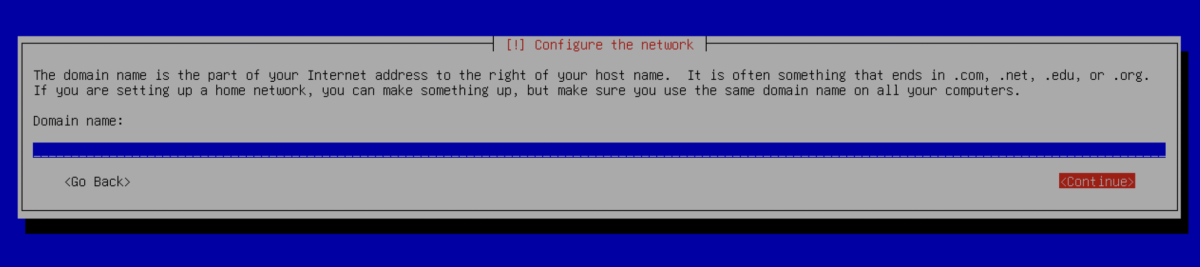
Step 7 : Leave the domain name empty and click Continue.
Step 8 : When prompted to set the root password, leave it empty and click Continue. This allows the created user to have sudo privileges.
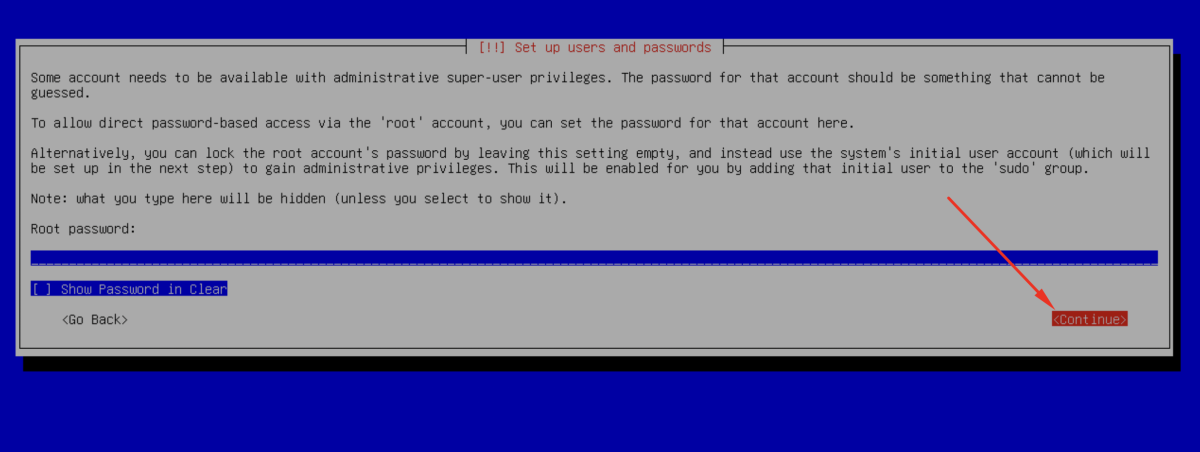
Continue
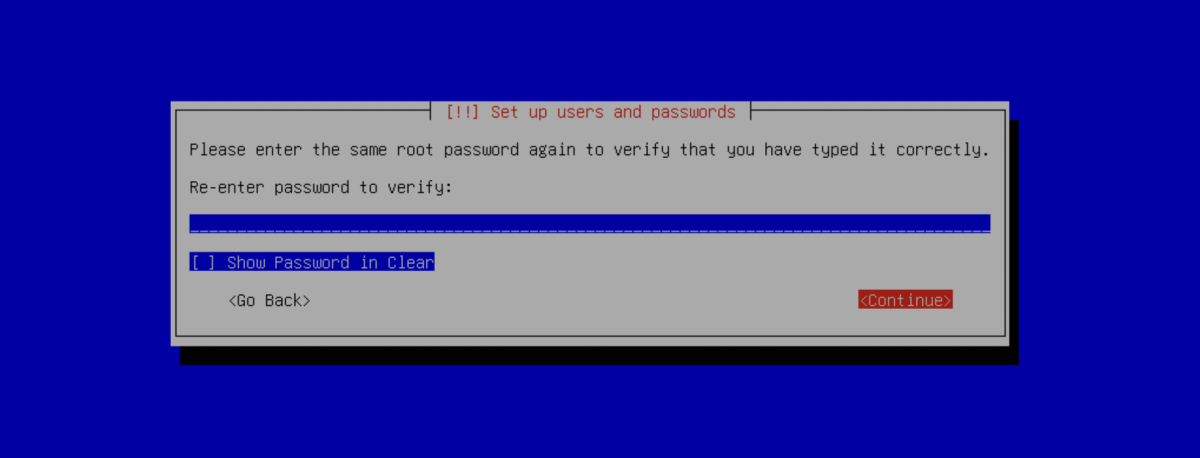
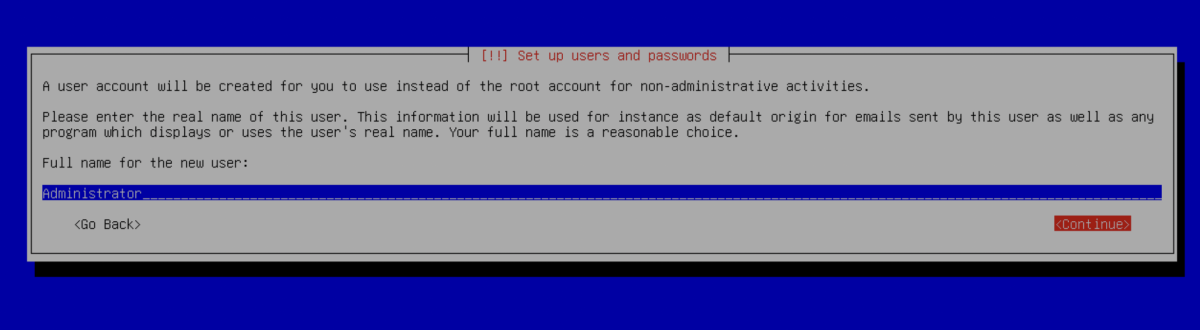
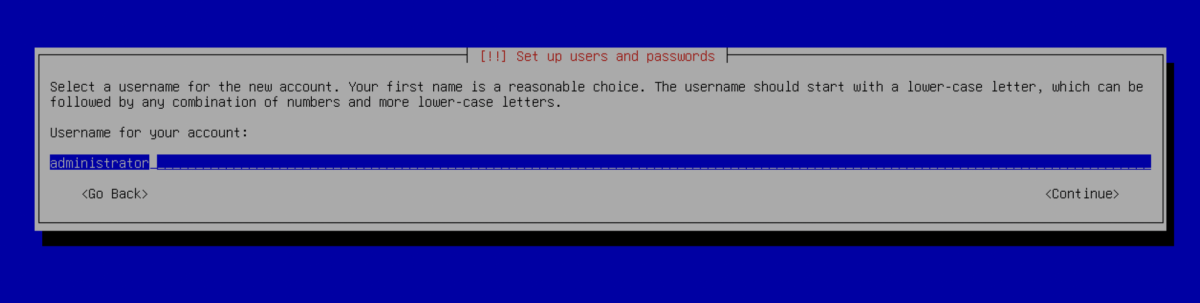
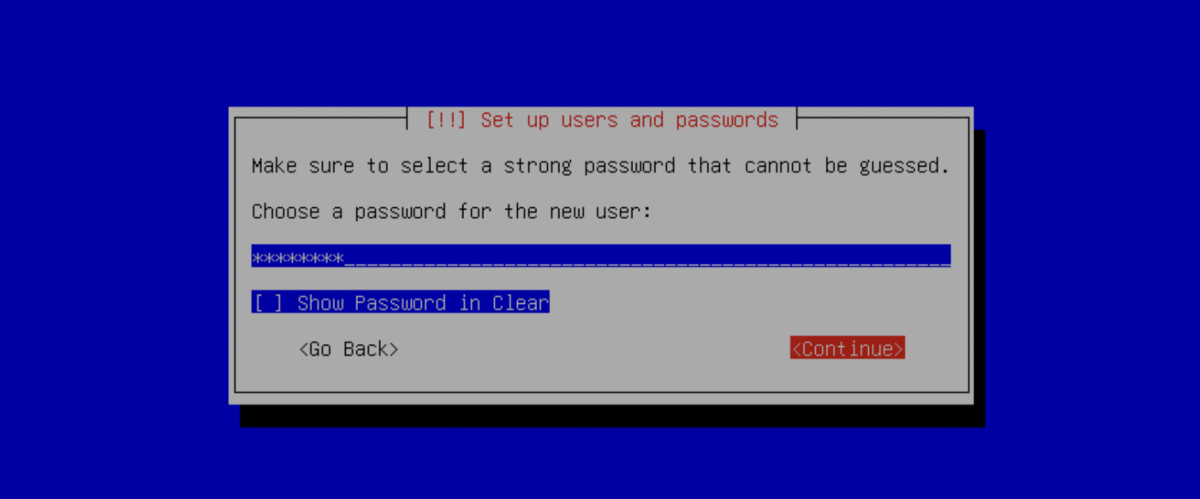
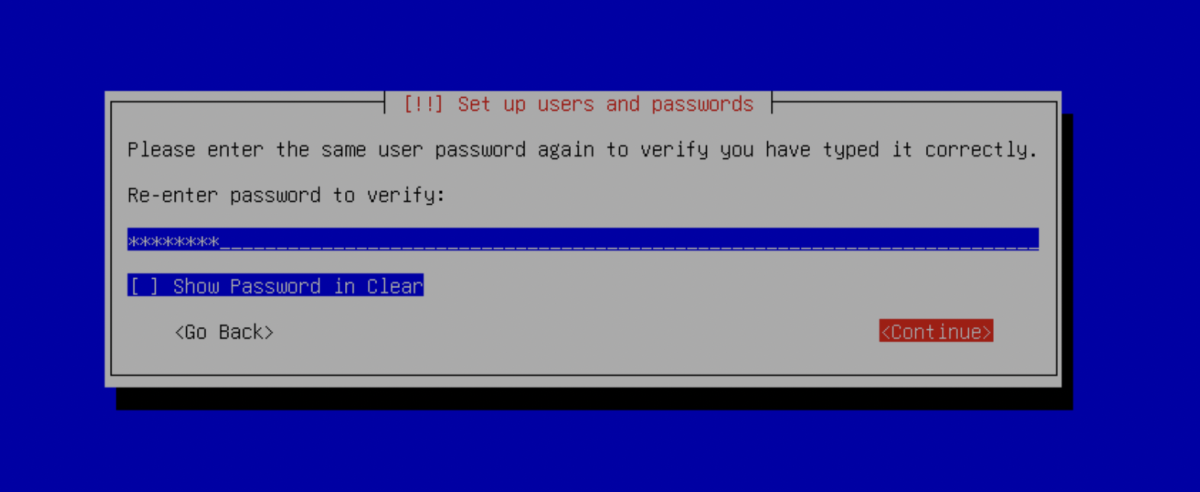
Step 9 : Create a regular user account by completing the following:
- Enter the full name
- Enter the username
- Enter the user password
- Re-enter the password to confirm
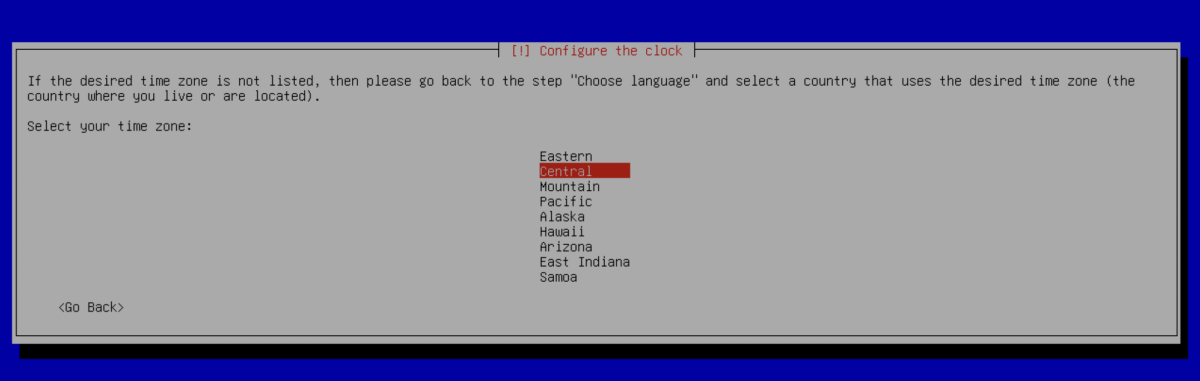
Step 10 : Select your time zone to configure the system clock.
Step 11 : Partition Disks : Select Use an entire disk.
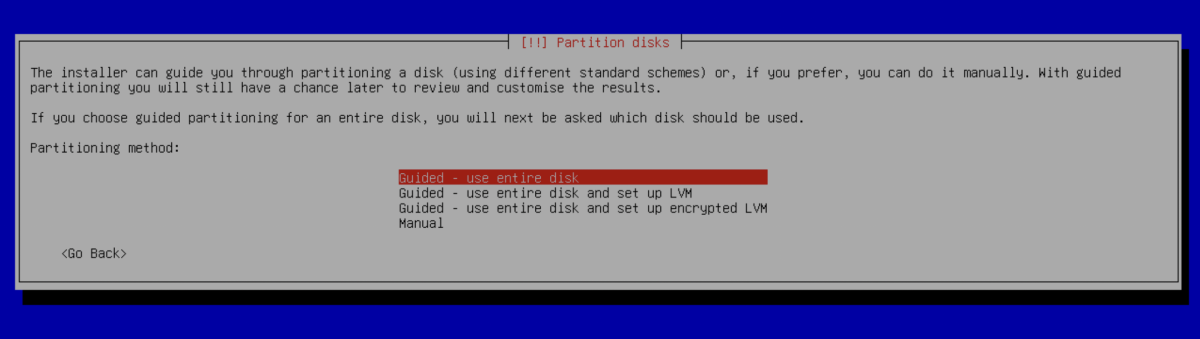
* This option will erase all data on the selected disk.
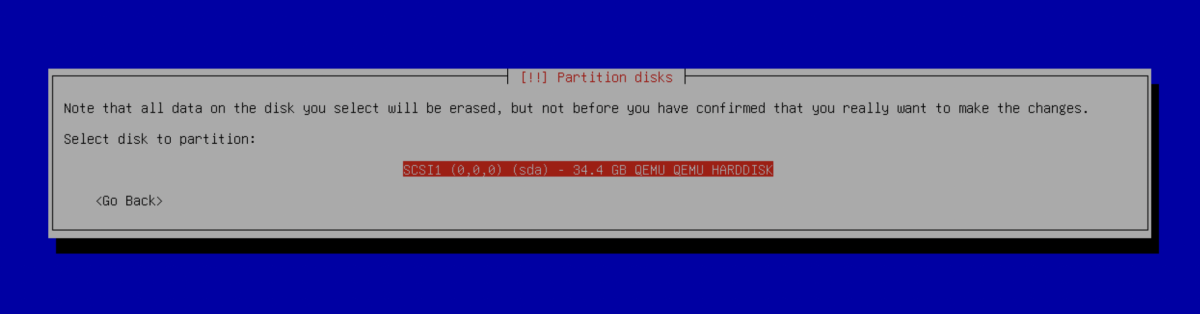
Step 12 : Choose the disk where Debian 13 will be installed.
Step 13 : Choose Partitioning Scheme : Select All files in one partition.
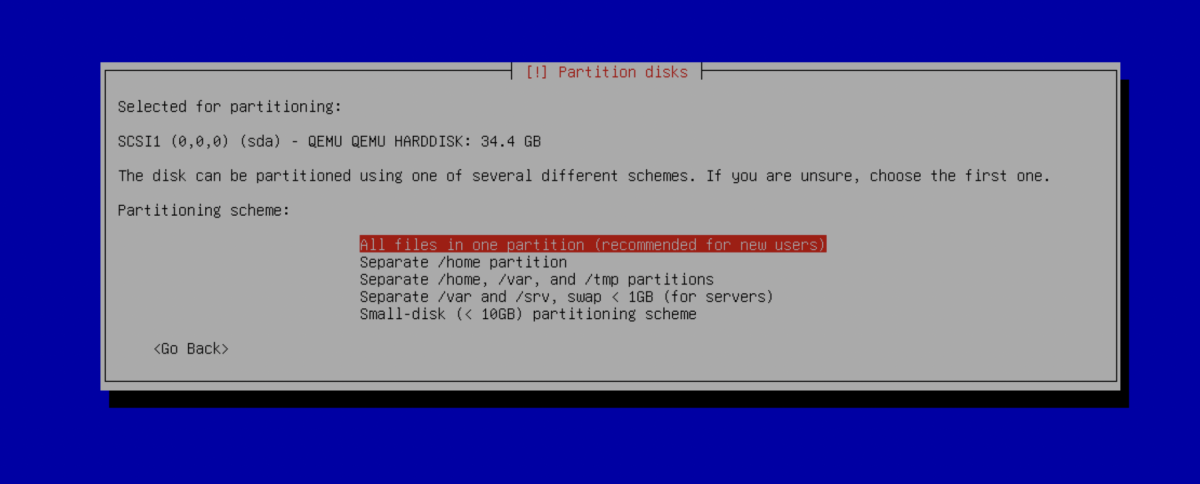
This option is recommended for beginners and simple setups.
Step 14 : Select Finish partitioning and write changes to disk.
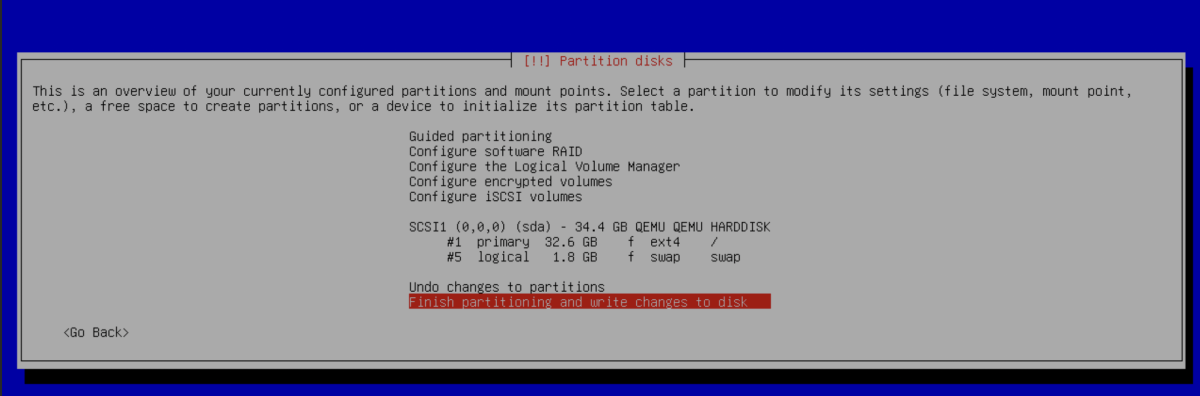
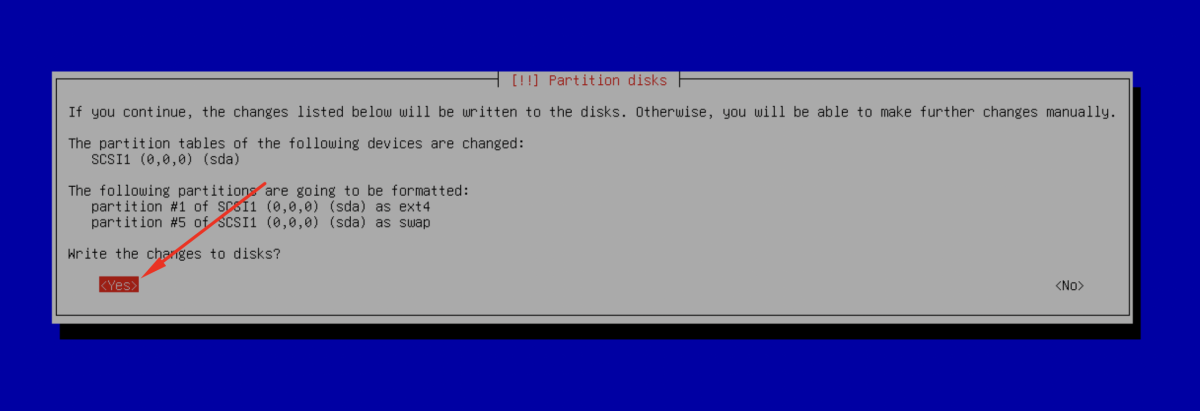
Step 15 : Confirm to write changes to disk.
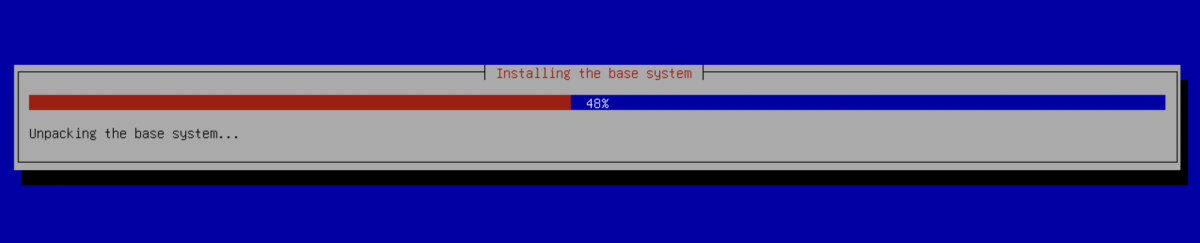
Step 16 : Wait while the installer installs the base system.
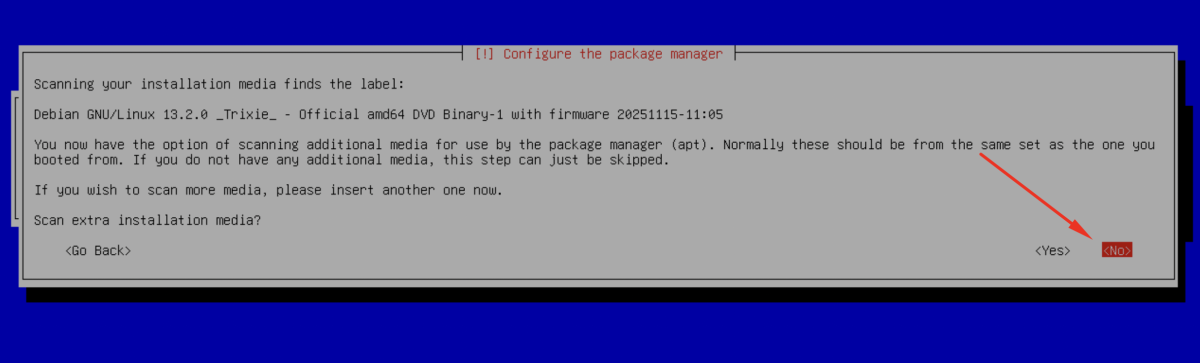
Step 17 : When asked to scan extra installation media, select No.
Step 18 : Select Yes to use a network mirror.
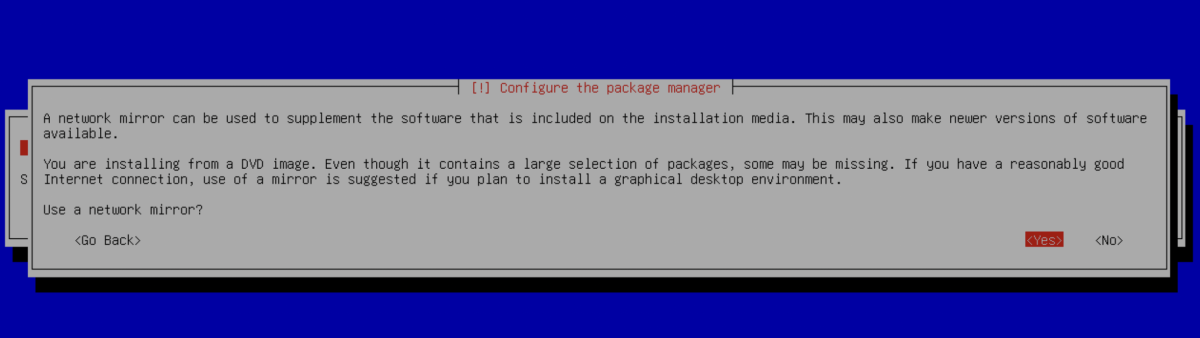
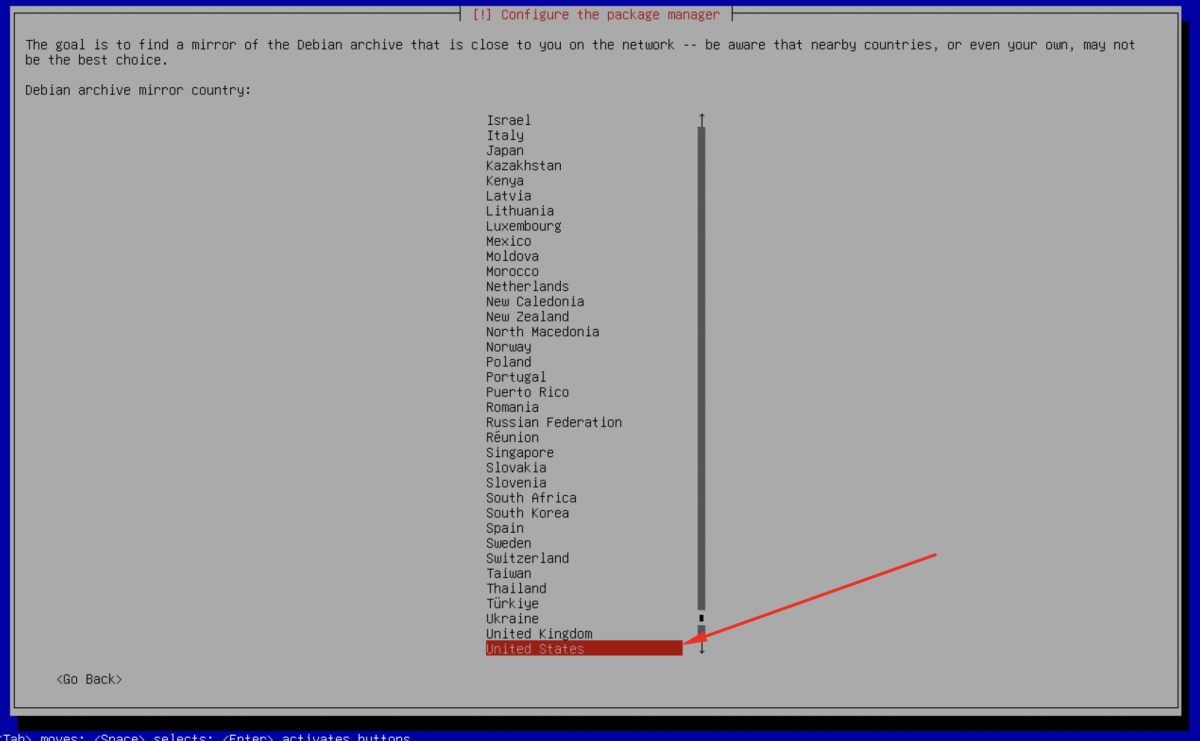
- Choose the mirror country
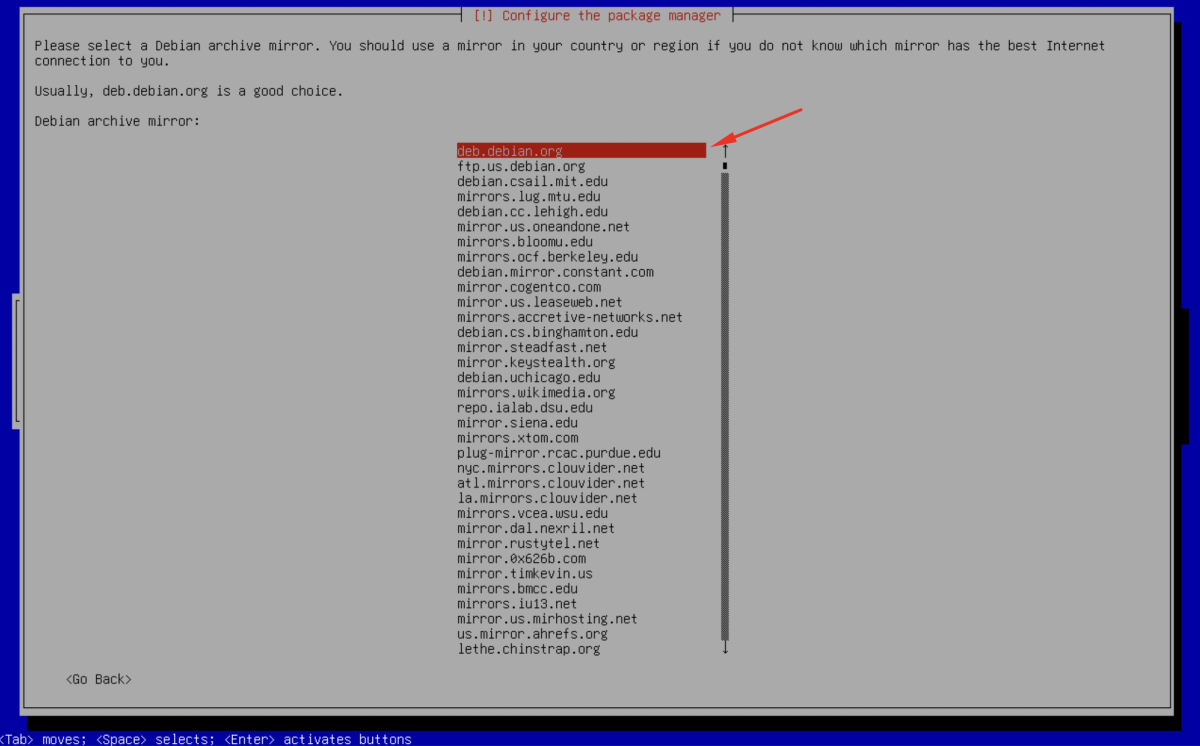
- And then select an archive mirror.
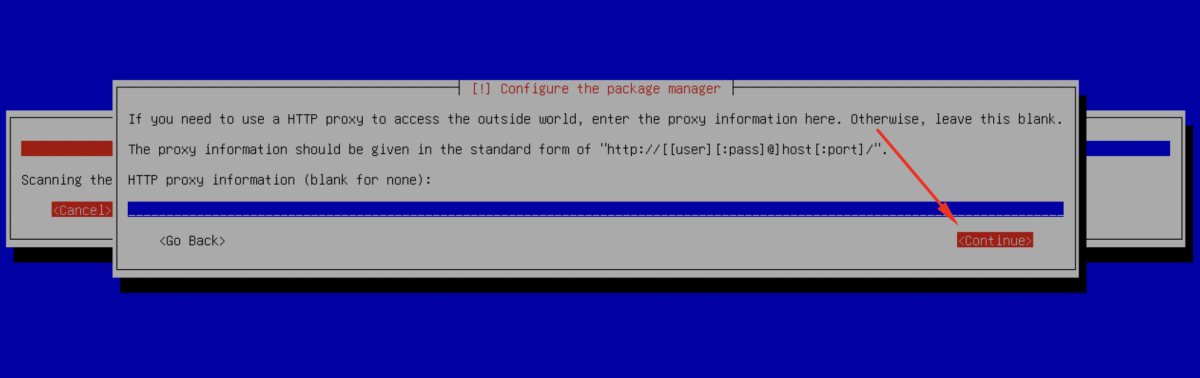
Step 19 : Leave the proxy field empty and click Continue.
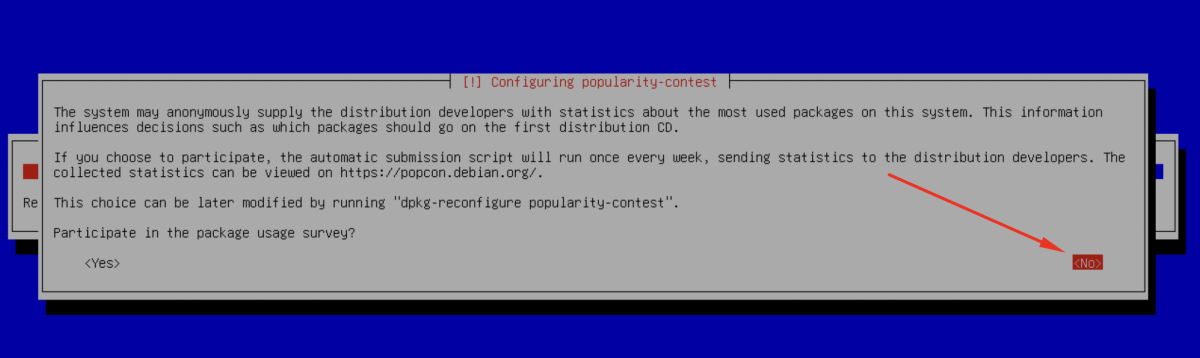
Step 20 : Configure Popularity Contest : When prompted, select No.
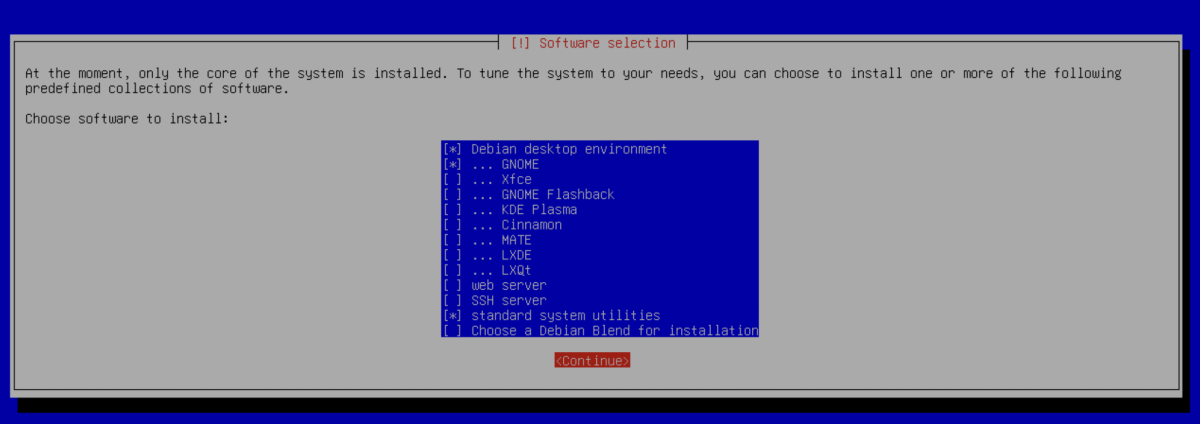
Step 21 : Choose the desired software. You may keep the default selections.
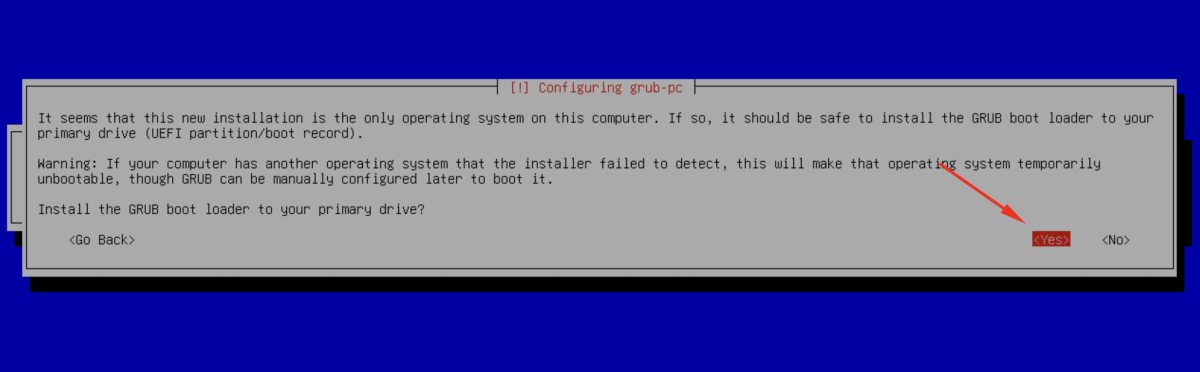
Step 22 : When asked to install the GRUB boot loader, select Yes.
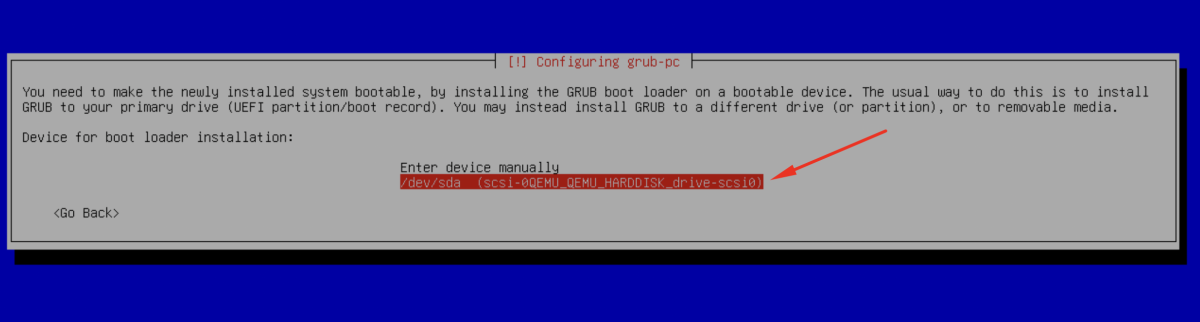
Step 23 : Choose the disk where the GRUB boot loader will be installed.
Step 24 : Wait for the installation process to complete.
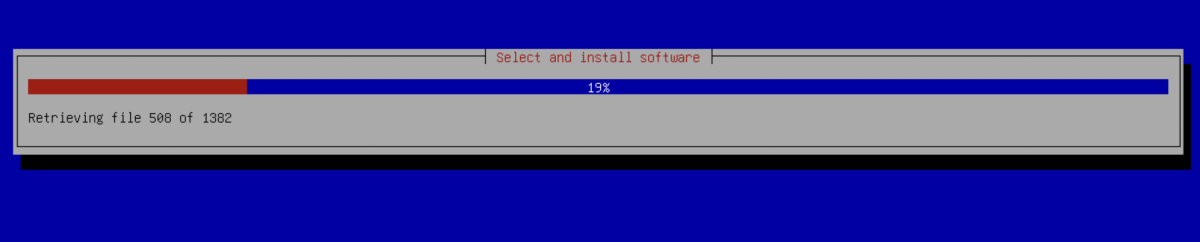
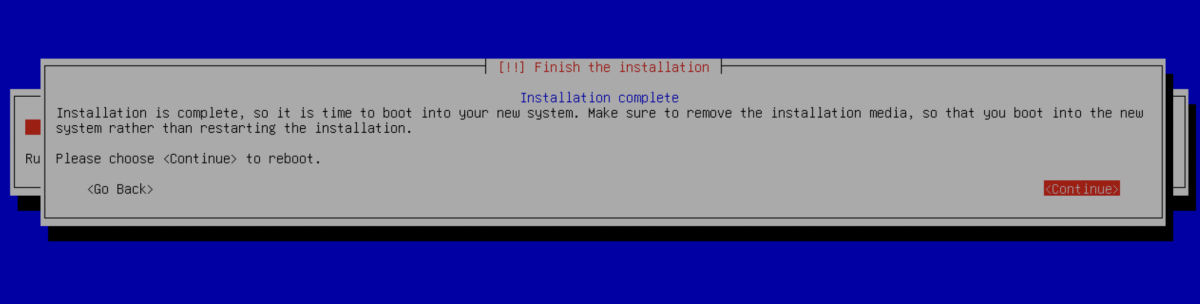
Step 25 : After installation completes, reboot the system.
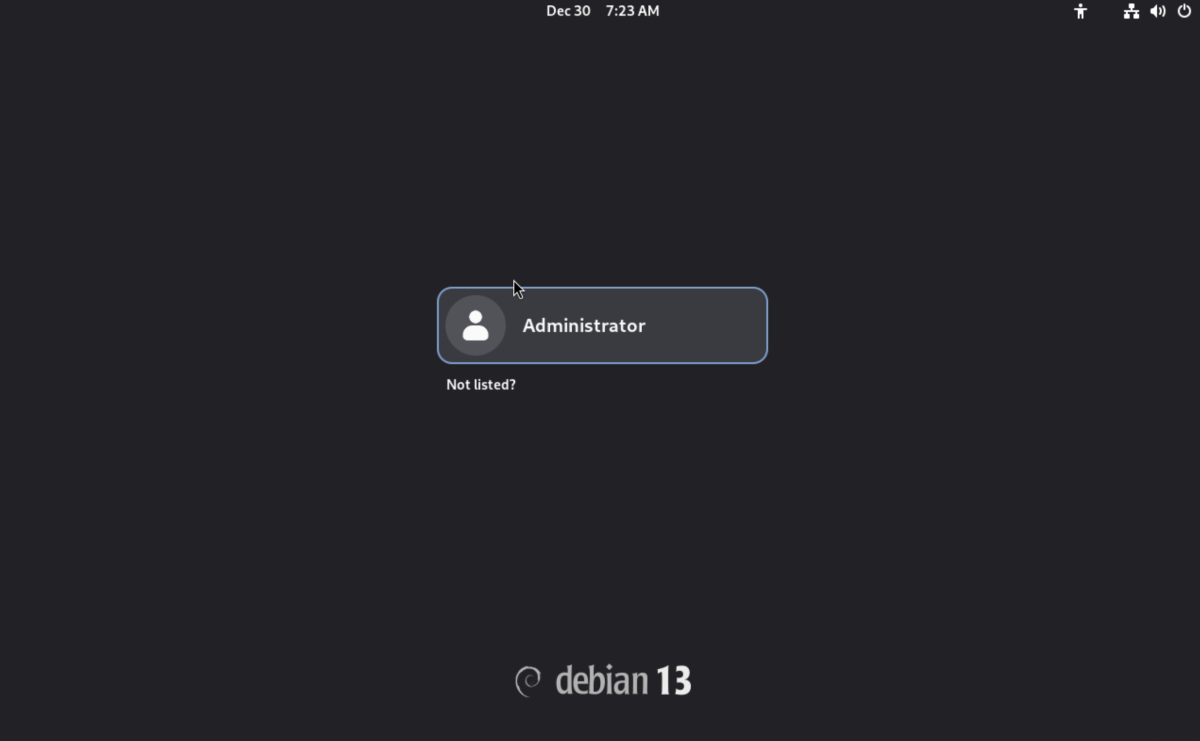
Step 26 : Log in using the user account created during installation.
Step 27 : After logging in, the Debian 13 desktop interface is displayed and ready for use.
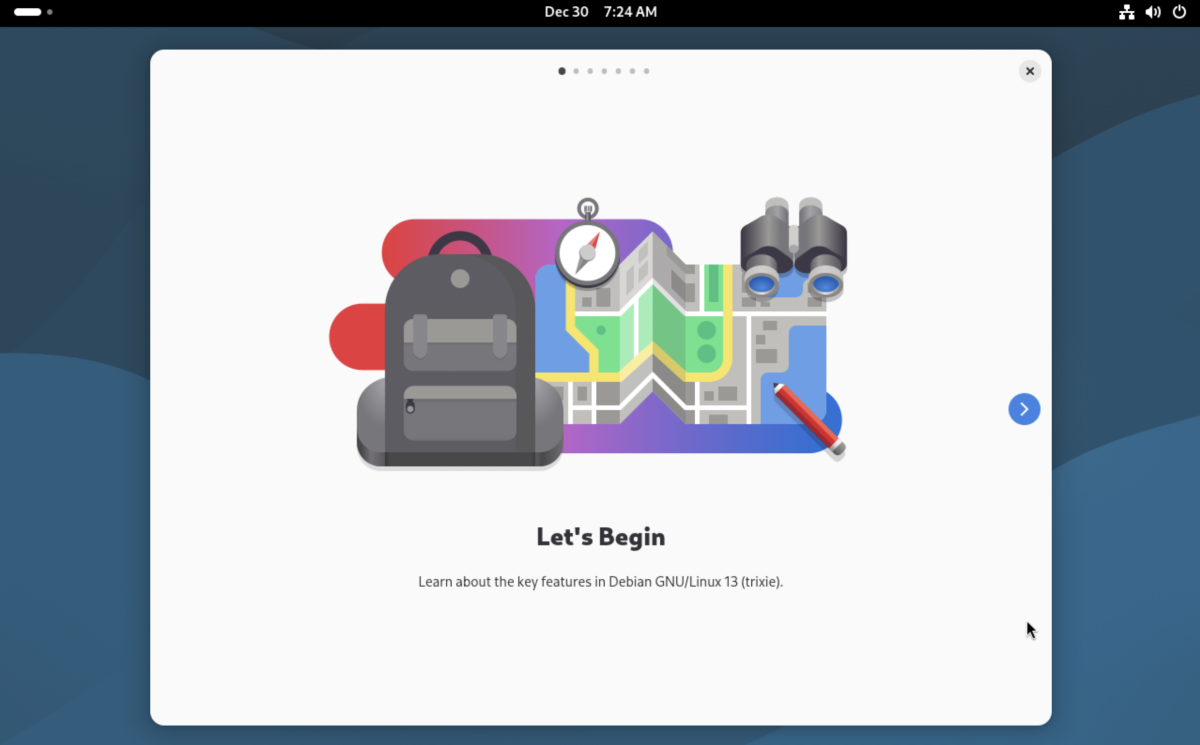
Congratulations, you have successfully installed Debian 13 on your system.